> ## Documentation Index
> Fetch the complete documentation index at: https://docs.elementum.io/llms.txt
> Use this file to discover all available pages before exploring further.
# Agent Architecture & A2A Protocol
> How Elementum agents are structured internally, coordinate with external agents via the A2A protocol, and integrate into deterministic workflows
Elementum agents operate at two levels: each agent has an internal architecture that balances AI reasoning with deterministic controls, and agents coordinate across organizational boundaries using the Agent-to-Agent (A2A) protocol. This page covers the internal component model, A2A discovery and authentication, the JSON-RPC messaging interface, streaming, and multi-turn conversations.
## Individual Agent Architecture
### Core Agent Components
Each Elementum agent follows a standardized internal architecture that balances AI capabilities with deterministic control structures:
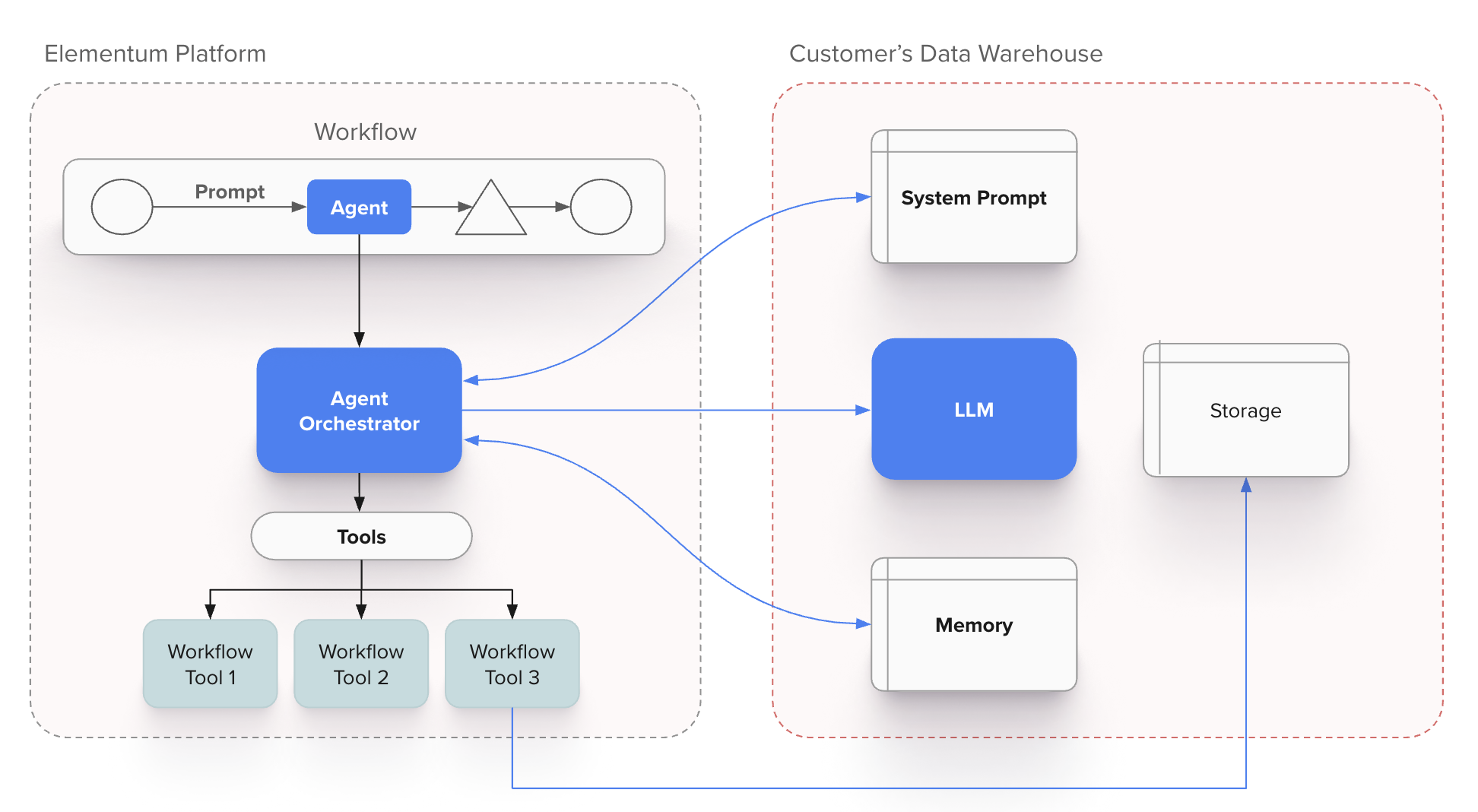 ### Agent Component Functions
* **System Prompts**: Define agent behavior, expertise domain, and operational constraints
* **Orchestrator**: Manages execution flow, tool calls, and contextual state
* **LLM Engine**: Provides natural language understanding and generation capabilities
* **Memory Systems**: Maintain context, conversation history, and learned patterns
* **Tool Registry**: Catalog of functions and integrations the agent can invoke
* **Customer Data Access**: Secure, governed access to relevant business data
### Deterministic Control Mechanisms
The agent orchestrator enforces deterministic behavior through:
* **Workflow Action Constraints**: Predefined actions that limit agent behavior to approved operations
* **Data Access Controls**: Strict boundaries around what data the agent can access and modify
* **Tool Invocation Rules**: Defined conditions for when and how external tools can be used
* **Escalation Triggers**: Automatic handoff to human oversight based on confidence thresholds or business rules
## Multi-Agent Coordination via A2A Protocol
### Agent2Agent (A2A) Protocol Implementation
The A2A protocol enables standardized communication between Elementum agents and external agent systems. The protocol operates through several key mechanisms:
For complete A2A protocol specification and additional resources, see the [A2A Project Documentation](https://a2aproject.github.io/A2A/latest/).
#### Agent Card Structure
Each agent publishes a standardized Agent Card that serves as both a discovery mechanism and capability contract. The Agent Card includes:
* **Identity and Capabilities**: Unique agent identifier and list of specific functions the agent can perform, such as document analysis, compliance checking, or data transformation.
* **Communication Endpoints**: Technical connection details including A2A protocol endpoints and health check URLs for establishing secure communication channels.
* **Authentication Requirements**: Security specifications covering authentication methods, required permissions, and access scopes needed for interaction.
* **Data Schemas**: Structured definitions of expected input formats and guaranteed output formats to ensure compatible data exchange between agents.
* **Governance Metadata**: Compliance and operational requirements including audit trails, data residency constraints, and regulatory certifications that govern agent interactions.
#### A2A Authentication
Elementum supports two authentication methods for A2A communication:
**OAuth Client Credentials Flow**
Standard OAuth 2.0 client credentials grant for machine-to-machine authentication. External agents obtain access tokens from an authorization server and include them in A2A requests.
**Self-Signed JWT Authentication**
For scenarios where external agents issue their own JWTs, Elementum validates tokens using the following configuration:
| Field | Description |
| ---------------------------- | ------------------------------------------------------------------------------------------------------------------------------------------------- |
| **Header Name** | The HTTP header containing the JWT token (typically `Authorization`) |
| **Email Address Claim Name** | The JWT claim containing the user identifier (e.g., `sub`, `email`). When configured, the agent runs with the permissions of the identified user. |
| **JWKS URL** | URL to the JSON Web Key Set endpoint for public key retrieval and token verification |
| **PEM Key** | Alternative to JWKS—paste the plaintext public key directly for JWT verification |
**Required Claims**
You can enforce additional JWT claims that must be present with specific values. This is useful for restricting access to particular clients or tenants:
| Field | Description |
| --------------------- | ----------------------------------------------------------------- |
| **Claim Name** | The JWT claim to validate (e.g., `client_id`, `aud`, `tenant`) |
| **Acceptable Values** | Comma-separated list of values that satisfy the claim requirement |
Use required claims to scope A2A access—for example, require `client_id` to match your partner's registered client identifier, or validate `aud` contains your agent's expected audience.
#### A2A Communication Flow
```mermaid theme={null}
sequenceDiagram
participant B as Business Process
participant O as Workflow Engine
participant A1 as Lead Agent
participant A2 as Specialist Agent
participant AW as Approval Workflow
B->>O: Initiate Complex Request
O->>A1: Assign Primary Task
A1->>A1: Analyze Requirements
A1->>A2: Request Specialist Capability
A2->>A1: Provide Agent Card & Context
A1->>A2: Collaborate on Subtask
A2->>A1: Return Specialized Results
A1->>O: Complete Primary Task
O->>AW: Execute Approval Workflow
AW->>AW: Human Review & Validation
AW->>O: Approval Decision
O->>B: Deliver Business Outcome
```
### Inter-Agent Communication Patterns
* Direct agent-to-agent calls for immediate responses
* Timeout handling and circuit breaker patterns
* Used for validation, lookup, and simple transformations
* Long-running operations with callback notifications
* Status polling and progress updates
* Used for analysis, document processing, and complex workflows
* Agents subscribe to relevant business events
* Reactive processing based on data changes
* Used for monitoring, alerting, and automated responses
## Workflow Integration Architecture
### Deterministic Structure Around Non-Deterministic Agents
Agents operate within workflow frameworks that provide governance and predictability:
```mermaid theme={null}
graph TB
subgraph "Elementum Ecosystem"
W[Workflow Engine]
A1[Data Analysis Agent]
A2[Communication Agent]
H1[Human Review Step]
H2[Approval Process]
A3[Compliance Agent]
end
subgraph "External Partners"
E1[Customer System Agent]
E2[Supplier Portal Agent]
E3[Regulatory Reporting Agent]
end
W --> A1
W --> H1
W --> A2
W --> H2
W --> A3
A1 -.->|A2A Protocol| E1
A2 -.->|A2A Protocol| E2
A3 -.->|A2A Protocol| E3
W --> R[Business Results]
```
### Workflow-Agent Integration Points
* **Task Assignment**: Workflow engine determines when and where to invoke agents
* **Context Provision**: Agents receive structured context and constraints from workflow state
* **Result Validation**: Agent outputs are validated against business rules before proceeding
* **Exception Handling**: Failed or low-confidence agent responses trigger defined escalation paths
## Connecting to an Elementum Agent via A2A
External systems can connect to Elementum agents that have been configured for A2A access. The connection follows the standard A2A handshake pattern.
To turn on A2A capabilities for your agent, select the agent and click the **Connections** tab. Toggle on **A2A Streaming** to enable A2A protocol communication. For additional conversation settings such as automatic record creation and inactivity timeouts, see [A2A Conversation Settings](#a2a-conversation-settings).
Elementum implements A2A protocol **version 0.3.0** with streaming support.
The A2A protocol is an evolving standard. The examples in this documentation reflect Elementum's current implementation. Contact your Elementum representative if you have questions about integration.
### Configure A2A Authentication
Configure how external systems authenticate when calling your agent from the **Authentication** section of the agent's **Configure** page. Elementum supports two authentication methods:
* **OAuth** — Standard OAuth 2.0 client credentials grant for machine-to-machine access. No additional fields are required in the Agent Configuration page.
* **JWT** — Self-signed JSON Web Tokens issued by an external system and validated by Elementum. Requires the configuration below.
The **Authentication** section controls how callers prove their identity to the agent. Streaming behavior is configured separately on the **Connections** tab; see [A2A Conversation Settings](#a2a-conversation-settings).
#### JWT Authentication
Click **+ Add Authentication** in the JWT section to open the configuration dialog. Elementum validates incoming tokens against a public key you provide.
| Field | Description |
| ----------------------------- | ----------------------------------------------------------------------------------------------------------------------------------------------------------------------------------------------------------------------------------------- |
| **Header Name** | The HTTP header that carries the JWT token on incoming requests. Defaults to `Authorization`. |
| **Email Address Claim Name** | The JWT claim that contains the caller's email address (commonly `sub` or `email`). Elementum extracts this value from the validated token and runs the agent as that user, applying that user's permissions. |
| **JWKS URL** / **Plain Text** | Toggle between providing a JWKS endpoint or pasting a public key directly. Choose **JWKS URL** when your identity provider exposes a JSON Web Key Set endpoint, or **Plain Text** to paste a PEM-formatted public key. |
| **Required Claims** | Optional. Click **+ Add Claim** to require specific claims with specific values in the token — for example, restricting access by `client_id`, `aud`, or `tenant`. Tokens missing the claim or carrying an unaccepted value are rejected. |
The caller signs each request with their private key, and Elementum verifies the signature using the configured public key. Because only the private key holder can produce a valid signature, a successful verification confirms the request's authenticity.
If JWT-authenticated requests appear to run as the agent's publisher instead of the calling user, check the following:
* JWT authentication is enabled in the **Authentication** section.
* The **Email Address Claim Name** matches the claim actually present in the token.
* The configured JWKS URL is reachable, or the pasted public key is current and correctly formatted.
For the protocol-level specification—including required claim semantics and authentication flow details—see [A2A Authentication](#a2a-authentication) below.
### Discover Agent Capabilities
Each Elementum agent has a unique A2A endpoint URL in the format:
```
https://agent-{agentId}-{orgDomain}.elementum.io/a2a/v1
```
Retrieve the Agent Card to understand the agent's capabilities, supported input/output modes, and available skills:
```
GET https://agent-{agentId}-{orgDomain}.elementum.io/a2a/v1/.well-known/agent.json
```
The Agent Card response includes:
* Agent name and description
* Supported protocol versions
* Available skills and their descriptions
* Authentication requirements
* Capability flags (streaming, push notifications)
### Send a Message to Initiate a Task
Use the `message/send` method to start an interaction:
```json theme={null}
{
"jsonrpc": "2.0",
"method": "message/send",
"params": {
"message": {
"role": "user",
"parts": [
{
"kind": "text",
"text": "Create a support ticket for login issues"
}
]
}
},
"id": 1
}
```
**Sending Attachments**
Messages can include file attachments alongside text content. To send an attachment, add a `file` part to the `parts` array with the file's `name`, `contentType`, and a `uri` pointing to the file location:
```json theme={null}
{
"jsonrpc": "2.0",
"method": "message/send",
"params": {
"message": {
"role": "user",
"parts": [
{
"kind": "text",
"text": "Help me with my orders"
},
{
"kind": "file",
"name": "orders.csv",
"contentType": "text/csv",
"uri": "https://example.com/files/orders.csv"
}
]
}
},
"id": 1
}
```
Each file part requires the following fields:
| Field | Description |
| ------------- | -------------------------------------------------------------------------------------------------------------------- |
| `kind` | Must be `"file"` to indicate an attachment |
| `name` | The filename including extension (e.g., `"orders.csv"`) |
| `contentType` | The MIME type of the file (e.g., `"text/csv"`, `"application/pdf"`, `"image/png"`) |
| `uri` | A URL where the file can be retrieved. The file must be accessible at this URI at the time the message is processed. |
You can include multiple file parts in a single message, and they can be combined with text parts in any order. Both `message/send` and `message/stream` support attachments.
The file referenced by `uri` must be publicly accessible or reachable by the Elementum platform at the time the agent processes the message. If the file cannot be retrieved, the agent may not be able to process the attachment.
### Receive Task Response
The agent returns a JSON-RPC response containing a Task object. The response includes a `contextId` that you can use for follow-up messages:
```json theme={null}
{
"jsonrpc": "2.0",
"id": "1",
"result": {
"id": "8f1dfa7f-76c3-4368-8799-3116df7f7992",
"contextId": "7584685c-e711-4e91-8d8e-e11484bff7b5",
"status": {
"state": "completed"
},
"history": [
{
"role": "user",
"parts": [{"kind": "text", "text": "Create a support ticket for login issues"}],
"taskId": "8f1dfa7f-76c3-4368-8799-3116df7f7992",
"contextId": "7584685c-e711-4e91-8d8e-e11484bff7b5"
}
],
"artifacts": [
{
"artifactId": "6299dcdc-0774-41a7-b35c-0018b1fbbba3",
"parts": [{"kind": "text", "text": "Support ticket #12345 created successfully."}]
}
],
"kind": "task"
}
}
```
## Streaming Responses
Elementum agents support streaming responses via `message/stream` using [Server-Sent Events (SSE)](https://a2a-protocol.org/v0.3.0/specification/#72-messagestream). This delivers real-time updates as tasks are processed — useful for long-running operations or when you want to display incremental progress to users.
**Initiating a Streaming Request**
Use the `message/stream` method instead of `message/send`:
```json theme={null}
{
"jsonrpc": "2.0",
"method": "message/stream",
"params": {
"message": {
"role": "user",
"parts": [
{
"kind": "text",
"text": "Analyze the quarterly sales data"
}
]
}
},
"id": 1
}
```
### Event Types
Every streaming response contains two event kinds, per the [A2A spec](https://a2a-protocol.org/v0.3.0/specification/#72-messagestream):
| Kind | Purpose |
| ----------------- | ---------------------------------------------------- |
| `status-update` | Agent lifecycle and tool execution notifications |
| `artifact-update` | The agent's response content, streamed incrementally |
### TaskStatusUpdateEvent
Status updates track what the agent is doing. The `status.state` field progresses through `submitted` → `working` → `completed`.
A `status-update` with `state: "working"` and **no** `message` means the agent is processing but has not called a tool yet. When the agent executes a tool, it emits an additional `status-update` with `state: "working"` and a `status.message` containing a description of the tool being executed:
```json theme={null}
{
"taskId": "97fa3b19-...",
"contextId": "4638cf82-...",
"status": {
"state": "working",
"message": {
"role": "agent",
"parts": [
{ "kind": "text", "text": "Executing tool: Creating item..." }
]
}
},
"kind": "status-update",
"final": false
}
```
If the agent calls multiple tools during a single request, each tool execution produces its own `status-update` event in sequence.
The final event in every stream is a `status-update` with `state: "completed"` and `final: true`.
### TaskArtifactUpdateEvent
Artifact updates carry the agent's text response, streamed token-by-token. Each event includes `append: true` and contains one text chunk. The last chunk in the sequence has `lastChunk: true`.
```json theme={null}
{
"taskId": "97fa3b19-...",
"contextId": "4638cf82-...",
"artifact": {
"artifactId": "12c26a10-...",
"parts": [
{ "kind": "text", "text": "Here" }
]
},
"append": true,
"lastChunk": false,
"kind": "artifact-update"
}
```
### Event Sequences
The order of events in a stream depends on whether the agent calls any tools while processing the request.
The simplest case — the agent responds directly without executing any tools:
```
status-update → state: submitted
status-update → state: working
artifact-update → first token (append: true)
...
artifact-update → last token (append: true, lastChunk: true)
status-update → state: completed (final: true)
```
The agent calls one tool before generating a response. The tool execution appears as an additional `working` status with a message:
```
status-update → state: submitted
status-update → state: working
status-update → state: working, message: "Executing tool: Creating item..."
artifact-update → first token (append: true)
...
artifact-update → last token (append: true, lastChunk: true)
status-update → state: completed (final: true)
```
The agent calls several tools in sequence. Each tool execution produces its own `status-update` event:
```
status-update → state: submitted
status-update → state: working
status-update → state: working, message: "Executing tool: Searching available skills..."
status-update → state: working, message: "Executing tool: Loading skill..."
status-update → state: working, message: "Executing tool: Creating record..."
artifact-update → first token (append: true)
...
artifact-update → last token (append: true, lastChunk: true)
status-update → state: completed (final: true)
```
### Key Fields
| Field | Description |
| ----------- | -------------------------------------------------------------- |
| `taskId` | Unique identifier for the task |
| `contextId` | Context identifier for multi-turn conversations |
| `kind` | Event type: `status-update` or `artifact-update` |
| `final` | `true` when the stream is complete |
| `append` | `true` indicates content should be appended to previous chunks |
| `lastChunk` | `true` when this is the final chunk of an artifact |
### Stream Handling Requirements
* Events are delivered in order and must not be reordered
* The stream ends when you receive a `status-update` event with `"final": true`
* Terminal states include: `completed`, `failed`, `canceled`, `rejected`
* Capture the `contextId` from the response for follow-up messages in [multi-turn conversations](#multi-turn-conversations)
## Task States
A2A tasks progress through defined lifecycle states:
| State | Description |
| ---------------- | ---------------------------------------------- |
| `submitted` | Task has been created and acknowledged |
| `working` | Task is actively being processed |
| `input-required` | Agent needs additional information to proceed |
| `completed` | Task finished successfully (terminal) |
| `failed` | Task encountered an error (terminal) |
| `canceled` | Task was canceled before completion (terminal) |
| `rejected` | Agent declined to perform the task (terminal) |
## Multi-Turn Conversations
The A2A protocol supports multi-turn conversations through the `contextId` field. When you send an initial message, the server generates a `contextId` in the response. Include this `contextId` in subsequent messages to continue the conversation.
**Initial Request:**
```json theme={null}
{
"jsonrpc": "2.0",
"method": "message/send",
"params": {
"message": {
"role": "user",
"parts": [
{
"kind": "text",
"text": "Hi, I need help with a support ticket"
}
]
}
},
"id": 1
}
```
**Follow-up Request (using contextId from response):**
```json theme={null}
{
"jsonrpc": "2.0",
"method": "message/send",
"params": {
"message": {
"role": "user",
"parts": [
{
"kind": "text",
"text": "The issue is with login authentication"
}
],
"contextId": "a269e867-fe40-4588-a381-c2596aeb3557"
}
},
"id": 2
}
```
The `contextId` groups related messages, enabling the agent to maintain conversational continuity across multiple interactions. When an agent requires additional input, it returns a task with `input-required` status—use the same `contextId` to provide the requested information.
## A2A Conversation Settings
Configure conversation behavior for A2A agents on the **Connections** tab of the agent detail page.
### A2A Streaming
Enable streaming responses for A2A protocol communication with the agent. When turned on, external systems can use the `message/stream` method to receive real-time, incremental responses. See [Streaming Responses](#streaming-responses) for protocol details.
### Create a Record
When enabled, Elementum automatically creates a record when a conversation is initiated via the A2A protocol. This requires a conversation inactivity timeout to be configured.
### Conversation Inactivity Timeout
Set the duration of inactivity (in minutes) before a conversation is automatically closed. When a conversation times out or completes, it can trigger follow-up automations.
Enable **Create a Record** and set a **Conversation Inactivity Timeout** to use the [Agent Conversation Ended](/workflows/automation-triggers-reference#record) trigger in an App's automation. This lets you run follow-up workflows — such as summarizing transcripts, updating CRM records, or generating reports — after an A2A conversation wraps up.
## Testing A2A Connections
To test your A2A integration with Elementum agents, use the official A2A Inspector tool:
**A2A Inspector**: [github.com/a2aproject/a2a-inspector](https://github.com/a2aproject/a2a-inspector)
The inspector allows you to:
* Fetch and validate Agent Cards
* Send test messages and view responses
* Monitor streaming events in real-time
* Debug authentication and protocol issues
## Protocol Version
Elementum currently implements A2A protocol version **0.3.0** with streaming support. The examples in this documentation reflect the current implementation.
For the complete A2A protocol specification, see [a2a-protocol.org](https://a2a-protocol.org/latest/specification/).
## Next Steps
* [Building Agents](./agents-experience) — Create an agent, configure tools, and add it to your app
* [Agent tools, deployment, and integrations](./agents-tools-and-deployment) — Tool types, deployment channels, and external agents via App Intelligence
* [Help & Resources](/support/resources) — Support and additional documentation
### Agent Component Functions
* **System Prompts**: Define agent behavior, expertise domain, and operational constraints
* **Orchestrator**: Manages execution flow, tool calls, and contextual state
* **LLM Engine**: Provides natural language understanding and generation capabilities
* **Memory Systems**: Maintain context, conversation history, and learned patterns
* **Tool Registry**: Catalog of functions and integrations the agent can invoke
* **Customer Data Access**: Secure, governed access to relevant business data
### Deterministic Control Mechanisms
The agent orchestrator enforces deterministic behavior through:
* **Workflow Action Constraints**: Predefined actions that limit agent behavior to approved operations
* **Data Access Controls**: Strict boundaries around what data the agent can access and modify
* **Tool Invocation Rules**: Defined conditions for when and how external tools can be used
* **Escalation Triggers**: Automatic handoff to human oversight based on confidence thresholds or business rules
## Multi-Agent Coordination via A2A Protocol
### Agent2Agent (A2A) Protocol Implementation
The A2A protocol enables standardized communication between Elementum agents and external agent systems. The protocol operates through several key mechanisms:
For complete A2A protocol specification and additional resources, see the [A2A Project Documentation](https://a2aproject.github.io/A2A/latest/).
#### Agent Card Structure
Each agent publishes a standardized Agent Card that serves as both a discovery mechanism and capability contract. The Agent Card includes:
* **Identity and Capabilities**: Unique agent identifier and list of specific functions the agent can perform, such as document analysis, compliance checking, or data transformation.
* **Communication Endpoints**: Technical connection details including A2A protocol endpoints and health check URLs for establishing secure communication channels.
* **Authentication Requirements**: Security specifications covering authentication methods, required permissions, and access scopes needed for interaction.
* **Data Schemas**: Structured definitions of expected input formats and guaranteed output formats to ensure compatible data exchange between agents.
* **Governance Metadata**: Compliance and operational requirements including audit trails, data residency constraints, and regulatory certifications that govern agent interactions.
#### A2A Authentication
Elementum supports two authentication methods for A2A communication:
**OAuth Client Credentials Flow**
Standard OAuth 2.0 client credentials grant for machine-to-machine authentication. External agents obtain access tokens from an authorization server and include them in A2A requests.
**Self-Signed JWT Authentication**
For scenarios where external agents issue their own JWTs, Elementum validates tokens using the following configuration:
| Field | Description |
| ---------------------------- | ------------------------------------------------------------------------------------------------------------------------------------------------- |
| **Header Name** | The HTTP header containing the JWT token (typically `Authorization`) |
| **Email Address Claim Name** | The JWT claim containing the user identifier (e.g., `sub`, `email`). When configured, the agent runs with the permissions of the identified user. |
| **JWKS URL** | URL to the JSON Web Key Set endpoint for public key retrieval and token verification |
| **PEM Key** | Alternative to JWKS—paste the plaintext public key directly for JWT verification |
**Required Claims**
You can enforce additional JWT claims that must be present with specific values. This is useful for restricting access to particular clients or tenants:
| Field | Description |
| --------------------- | ----------------------------------------------------------------- |
| **Claim Name** | The JWT claim to validate (e.g., `client_id`, `aud`, `tenant`) |
| **Acceptable Values** | Comma-separated list of values that satisfy the claim requirement |
Use required claims to scope A2A access—for example, require `client_id` to match your partner's registered client identifier, or validate `aud` contains your agent's expected audience.
#### A2A Communication Flow
```mermaid theme={null}
sequenceDiagram
participant B as Business Process
participant O as Workflow Engine
participant A1 as Lead Agent
participant A2 as Specialist Agent
participant AW as Approval Workflow
B->>O: Initiate Complex Request
O->>A1: Assign Primary Task
A1->>A1: Analyze Requirements
A1->>A2: Request Specialist Capability
A2->>A1: Provide Agent Card & Context
A1->>A2: Collaborate on Subtask
A2->>A1: Return Specialized Results
A1->>O: Complete Primary Task
O->>AW: Execute Approval Workflow
AW->>AW: Human Review & Validation
AW->>O: Approval Decision
O->>B: Deliver Business Outcome
```
### Inter-Agent Communication Patterns
* Direct agent-to-agent calls for immediate responses
* Timeout handling and circuit breaker patterns
* Used for validation, lookup, and simple transformations
* Long-running operations with callback notifications
* Status polling and progress updates
* Used for analysis, document processing, and complex workflows
* Agents subscribe to relevant business events
* Reactive processing based on data changes
* Used for monitoring, alerting, and automated responses
## Workflow Integration Architecture
### Deterministic Structure Around Non-Deterministic Agents
Agents operate within workflow frameworks that provide governance and predictability:
```mermaid theme={null}
graph TB
subgraph "Elementum Ecosystem"
W[Workflow Engine]
A1[Data Analysis Agent]
A2[Communication Agent]
H1[Human Review Step]
H2[Approval Process]
A3[Compliance Agent]
end
subgraph "External Partners"
E1[Customer System Agent]
E2[Supplier Portal Agent]
E3[Regulatory Reporting Agent]
end
W --> A1
W --> H1
W --> A2
W --> H2
W --> A3
A1 -.->|A2A Protocol| E1
A2 -.->|A2A Protocol| E2
A3 -.->|A2A Protocol| E3
W --> R[Business Results]
```
### Workflow-Agent Integration Points
* **Task Assignment**: Workflow engine determines when and where to invoke agents
* **Context Provision**: Agents receive structured context and constraints from workflow state
* **Result Validation**: Agent outputs are validated against business rules before proceeding
* **Exception Handling**: Failed or low-confidence agent responses trigger defined escalation paths
## Connecting to an Elementum Agent via A2A
External systems can connect to Elementum agents that have been configured for A2A access. The connection follows the standard A2A handshake pattern.
To turn on A2A capabilities for your agent, select the agent and click the **Connections** tab. Toggle on **A2A Streaming** to enable A2A protocol communication. For additional conversation settings such as automatic record creation and inactivity timeouts, see [A2A Conversation Settings](#a2a-conversation-settings).
Elementum implements A2A protocol **version 0.3.0** with streaming support.
The A2A protocol is an evolving standard. The examples in this documentation reflect Elementum's current implementation. Contact your Elementum representative if you have questions about integration.
### Configure A2A Authentication
Configure how external systems authenticate when calling your agent from the **Authentication** section of the agent's **Configure** page. Elementum supports two authentication methods:
* **OAuth** — Standard OAuth 2.0 client credentials grant for machine-to-machine access. No additional fields are required in the Agent Configuration page.
* **JWT** — Self-signed JSON Web Tokens issued by an external system and validated by Elementum. Requires the configuration below.
The **Authentication** section controls how callers prove their identity to the agent. Streaming behavior is configured separately on the **Connections** tab; see [A2A Conversation Settings](#a2a-conversation-settings).
#### JWT Authentication
Click **+ Add Authentication** in the JWT section to open the configuration dialog. Elementum validates incoming tokens against a public key you provide.
| Field | Description |
| ----------------------------- | ----------------------------------------------------------------------------------------------------------------------------------------------------------------------------------------------------------------------------------------- |
| **Header Name** | The HTTP header that carries the JWT token on incoming requests. Defaults to `Authorization`. |
| **Email Address Claim Name** | The JWT claim that contains the caller's email address (commonly `sub` or `email`). Elementum extracts this value from the validated token and runs the agent as that user, applying that user's permissions. |
| **JWKS URL** / **Plain Text** | Toggle between providing a JWKS endpoint or pasting a public key directly. Choose **JWKS URL** when your identity provider exposes a JSON Web Key Set endpoint, or **Plain Text** to paste a PEM-formatted public key. |
| **Required Claims** | Optional. Click **+ Add Claim** to require specific claims with specific values in the token — for example, restricting access by `client_id`, `aud`, or `tenant`. Tokens missing the claim or carrying an unaccepted value are rejected. |
The caller signs each request with their private key, and Elementum verifies the signature using the configured public key. Because only the private key holder can produce a valid signature, a successful verification confirms the request's authenticity.
If JWT-authenticated requests appear to run as the agent's publisher instead of the calling user, check the following:
* JWT authentication is enabled in the **Authentication** section.
* The **Email Address Claim Name** matches the claim actually present in the token.
* The configured JWKS URL is reachable, or the pasted public key is current and correctly formatted.
For the protocol-level specification—including required claim semantics and authentication flow details—see [A2A Authentication](#a2a-authentication) below.
### Discover Agent Capabilities
Each Elementum agent has a unique A2A endpoint URL in the format:
```
https://agent-{agentId}-{orgDomain}.elementum.io/a2a/v1
```
Retrieve the Agent Card to understand the agent's capabilities, supported input/output modes, and available skills:
```
GET https://agent-{agentId}-{orgDomain}.elementum.io/a2a/v1/.well-known/agent.json
```
The Agent Card response includes:
* Agent name and description
* Supported protocol versions
* Available skills and their descriptions
* Authentication requirements
* Capability flags (streaming, push notifications)
### Send a Message to Initiate a Task
Use the `message/send` method to start an interaction:
```json theme={null}
{
"jsonrpc": "2.0",
"method": "message/send",
"params": {
"message": {
"role": "user",
"parts": [
{
"kind": "text",
"text": "Create a support ticket for login issues"
}
]
}
},
"id": 1
}
```
**Sending Attachments**
Messages can include file attachments alongside text content. To send an attachment, add a `file` part to the `parts` array with the file's `name`, `contentType`, and a `uri` pointing to the file location:
```json theme={null}
{
"jsonrpc": "2.0",
"method": "message/send",
"params": {
"message": {
"role": "user",
"parts": [
{
"kind": "text",
"text": "Help me with my orders"
},
{
"kind": "file",
"name": "orders.csv",
"contentType": "text/csv",
"uri": "https://example.com/files/orders.csv"
}
]
}
},
"id": 1
}
```
Each file part requires the following fields:
| Field | Description |
| ------------- | -------------------------------------------------------------------------------------------------------------------- |
| `kind` | Must be `"file"` to indicate an attachment |
| `name` | The filename including extension (e.g., `"orders.csv"`) |
| `contentType` | The MIME type of the file (e.g., `"text/csv"`, `"application/pdf"`, `"image/png"`) |
| `uri` | A URL where the file can be retrieved. The file must be accessible at this URI at the time the message is processed. |
You can include multiple file parts in a single message, and they can be combined with text parts in any order. Both `message/send` and `message/stream` support attachments.
The file referenced by `uri` must be publicly accessible or reachable by the Elementum platform at the time the agent processes the message. If the file cannot be retrieved, the agent may not be able to process the attachment.
### Receive Task Response
The agent returns a JSON-RPC response containing a Task object. The response includes a `contextId` that you can use for follow-up messages:
```json theme={null}
{
"jsonrpc": "2.0",
"id": "1",
"result": {
"id": "8f1dfa7f-76c3-4368-8799-3116df7f7992",
"contextId": "7584685c-e711-4e91-8d8e-e11484bff7b5",
"status": {
"state": "completed"
},
"history": [
{
"role": "user",
"parts": [{"kind": "text", "text": "Create a support ticket for login issues"}],
"taskId": "8f1dfa7f-76c3-4368-8799-3116df7f7992",
"contextId": "7584685c-e711-4e91-8d8e-e11484bff7b5"
}
],
"artifacts": [
{
"artifactId": "6299dcdc-0774-41a7-b35c-0018b1fbbba3",
"parts": [{"kind": "text", "text": "Support ticket #12345 created successfully."}]
}
],
"kind": "task"
}
}
```
## Streaming Responses
Elementum agents support streaming responses via `message/stream` using [Server-Sent Events (SSE)](https://a2a-protocol.org/v0.3.0/specification/#72-messagestream). This delivers real-time updates as tasks are processed — useful for long-running operations or when you want to display incremental progress to users.
**Initiating a Streaming Request**
Use the `message/stream` method instead of `message/send`:
```json theme={null}
{
"jsonrpc": "2.0",
"method": "message/stream",
"params": {
"message": {
"role": "user",
"parts": [
{
"kind": "text",
"text": "Analyze the quarterly sales data"
}
]
}
},
"id": 1
}
```
### Event Types
Every streaming response contains two event kinds, per the [A2A spec](https://a2a-protocol.org/v0.3.0/specification/#72-messagestream):
| Kind | Purpose |
| ----------------- | ---------------------------------------------------- |
| `status-update` | Agent lifecycle and tool execution notifications |
| `artifact-update` | The agent's response content, streamed incrementally |
### TaskStatusUpdateEvent
Status updates track what the agent is doing. The `status.state` field progresses through `submitted` → `working` → `completed`.
A `status-update` with `state: "working"` and **no** `message` means the agent is processing but has not called a tool yet. When the agent executes a tool, it emits an additional `status-update` with `state: "working"` and a `status.message` containing a description of the tool being executed:
```json theme={null}
{
"taskId": "97fa3b19-...",
"contextId": "4638cf82-...",
"status": {
"state": "working",
"message": {
"role": "agent",
"parts": [
{ "kind": "text", "text": "Executing tool: Creating item..." }
]
}
},
"kind": "status-update",
"final": false
}
```
If the agent calls multiple tools during a single request, each tool execution produces its own `status-update` event in sequence.
The final event in every stream is a `status-update` with `state: "completed"` and `final: true`.
### TaskArtifactUpdateEvent
Artifact updates carry the agent's text response, streamed token-by-token. Each event includes `append: true` and contains one text chunk. The last chunk in the sequence has `lastChunk: true`.
```json theme={null}
{
"taskId": "97fa3b19-...",
"contextId": "4638cf82-...",
"artifact": {
"artifactId": "12c26a10-...",
"parts": [
{ "kind": "text", "text": "Here" }
]
},
"append": true,
"lastChunk": false,
"kind": "artifact-update"
}
```
### Event Sequences
The order of events in a stream depends on whether the agent calls any tools while processing the request.
The simplest case — the agent responds directly without executing any tools:
```
status-update → state: submitted
status-update → state: working
artifact-update → first token (append: true)
...
artifact-update → last token (append: true, lastChunk: true)
status-update → state: completed (final: true)
```
The agent calls one tool before generating a response. The tool execution appears as an additional `working` status with a message:
```
status-update → state: submitted
status-update → state: working
status-update → state: working, message: "Executing tool: Creating item..."
artifact-update → first token (append: true)
...
artifact-update → last token (append: true, lastChunk: true)
status-update → state: completed (final: true)
```
The agent calls several tools in sequence. Each tool execution produces its own `status-update` event:
```
status-update → state: submitted
status-update → state: working
status-update → state: working, message: "Executing tool: Searching available skills..."
status-update → state: working, message: "Executing tool: Loading skill..."
status-update → state: working, message: "Executing tool: Creating record..."
artifact-update → first token (append: true)
...
artifact-update → last token (append: true, lastChunk: true)
status-update → state: completed (final: true)
```
### Key Fields
| Field | Description |
| ----------- | -------------------------------------------------------------- |
| `taskId` | Unique identifier for the task |
| `contextId` | Context identifier for multi-turn conversations |
| `kind` | Event type: `status-update` or `artifact-update` |
| `final` | `true` when the stream is complete |
| `append` | `true` indicates content should be appended to previous chunks |
| `lastChunk` | `true` when this is the final chunk of an artifact |
### Stream Handling Requirements
* Events are delivered in order and must not be reordered
* The stream ends when you receive a `status-update` event with `"final": true`
* Terminal states include: `completed`, `failed`, `canceled`, `rejected`
* Capture the `contextId` from the response for follow-up messages in [multi-turn conversations](#multi-turn-conversations)
## Task States
A2A tasks progress through defined lifecycle states:
| State | Description |
| ---------------- | ---------------------------------------------- |
| `submitted` | Task has been created and acknowledged |
| `working` | Task is actively being processed |
| `input-required` | Agent needs additional information to proceed |
| `completed` | Task finished successfully (terminal) |
| `failed` | Task encountered an error (terminal) |
| `canceled` | Task was canceled before completion (terminal) |
| `rejected` | Agent declined to perform the task (terminal) |
## Multi-Turn Conversations
The A2A protocol supports multi-turn conversations through the `contextId` field. When you send an initial message, the server generates a `contextId` in the response. Include this `contextId` in subsequent messages to continue the conversation.
**Initial Request:**
```json theme={null}
{
"jsonrpc": "2.0",
"method": "message/send",
"params": {
"message": {
"role": "user",
"parts": [
{
"kind": "text",
"text": "Hi, I need help with a support ticket"
}
]
}
},
"id": 1
}
```
**Follow-up Request (using contextId from response):**
```json theme={null}
{
"jsonrpc": "2.0",
"method": "message/send",
"params": {
"message": {
"role": "user",
"parts": [
{
"kind": "text",
"text": "The issue is with login authentication"
}
],
"contextId": "a269e867-fe40-4588-a381-c2596aeb3557"
}
},
"id": 2
}
```
The `contextId` groups related messages, enabling the agent to maintain conversational continuity across multiple interactions. When an agent requires additional input, it returns a task with `input-required` status—use the same `contextId` to provide the requested information.
## A2A Conversation Settings
Configure conversation behavior for A2A agents on the **Connections** tab of the agent detail page.
### A2A Streaming
Enable streaming responses for A2A protocol communication with the agent. When turned on, external systems can use the `message/stream` method to receive real-time, incremental responses. See [Streaming Responses](#streaming-responses) for protocol details.
### Create a Record
When enabled, Elementum automatically creates a record when a conversation is initiated via the A2A protocol. This requires a conversation inactivity timeout to be configured.
### Conversation Inactivity Timeout
Set the duration of inactivity (in minutes) before a conversation is automatically closed. When a conversation times out or completes, it can trigger follow-up automations.
Enable **Create a Record** and set a **Conversation Inactivity Timeout** to use the [Agent Conversation Ended](/workflows/automation-triggers-reference#record) trigger in an App's automation. This lets you run follow-up workflows — such as summarizing transcripts, updating CRM records, or generating reports — after an A2A conversation wraps up.
## Testing A2A Connections
To test your A2A integration with Elementum agents, use the official A2A Inspector tool:
**A2A Inspector**: [github.com/a2aproject/a2a-inspector](https://github.com/a2aproject/a2a-inspector)
The inspector allows you to:
* Fetch and validate Agent Cards
* Send test messages and view responses
* Monitor streaming events in real-time
* Debug authentication and protocol issues
## Protocol Version
Elementum currently implements A2A protocol version **0.3.0** with streaming support. The examples in this documentation reflect the current implementation.
For the complete A2A protocol specification, see [a2a-protocol.org](https://a2a-protocol.org/latest/specification/).
## Next Steps
* [Building Agents](./agents-experience) — Create an agent, configure tools, and add it to your app
* [Agent tools, deployment, and integrations](./agents-tools-and-deployment) — Tool types, deployment channels, and external agents via App Intelligence
* [Help & Resources](/support/resources) — Support and additional documentation